
Submagic User Guide (Practical Edition)

Disclosure: Some links on this page are affiliate links. We may earn a commission if you purchase through them — at no extra cost to you.
This guide is organized into: Getting Started → Core Features → Advanced Tips → FAQ, and is designed for adding AI captions to short-form vertical videos (TikTok / Instagram Reels / YouTube Shorts).
1. What is Submagic?
Submagic is a browser-based AI video captioning and editing tool. Its main features include:
- Upload a video → AI transcription → Generate “viral-style” dynamic captions
- Word-by-word highlighting, automatic emoji insertion, auto zoom/transitions/B-roll
- Multi-language captions and translation support
- Auto-cut long videos into short clips (Magic Clips)
- Ideal for short-form video creators who don’t use CapCut or Premiere Pro
Official website: https://www.submagic.co
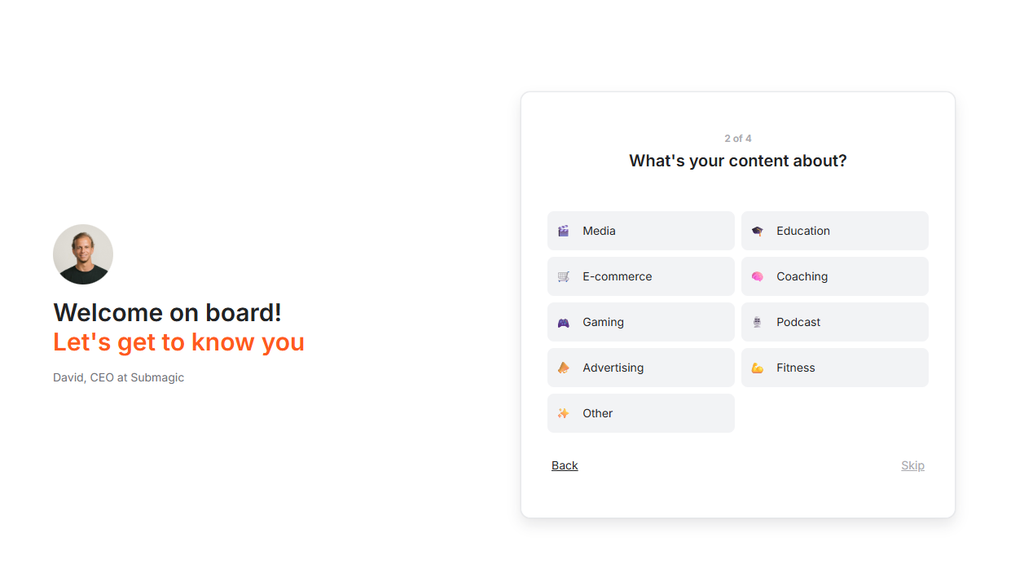
2. Basic Workflow (Most Common: Add Captions to a Short Video)
2.1 Sign Up & Log In
- Go to Submagic
- Sign up with email or Google account
- Enter the Dashboard
2.2 Create a New Project & Upload Video
- Click Generate Captions / Create / New video
- Upload a local video (MP4 / MOV recommended)
- Or paste a YouTube / TikTok link (supported for some features)
- Vertical 9:16 format, 30 seconds to a few minutes works best
Tip: A quiet environment and clear speech lead to higher transcription accuracy.
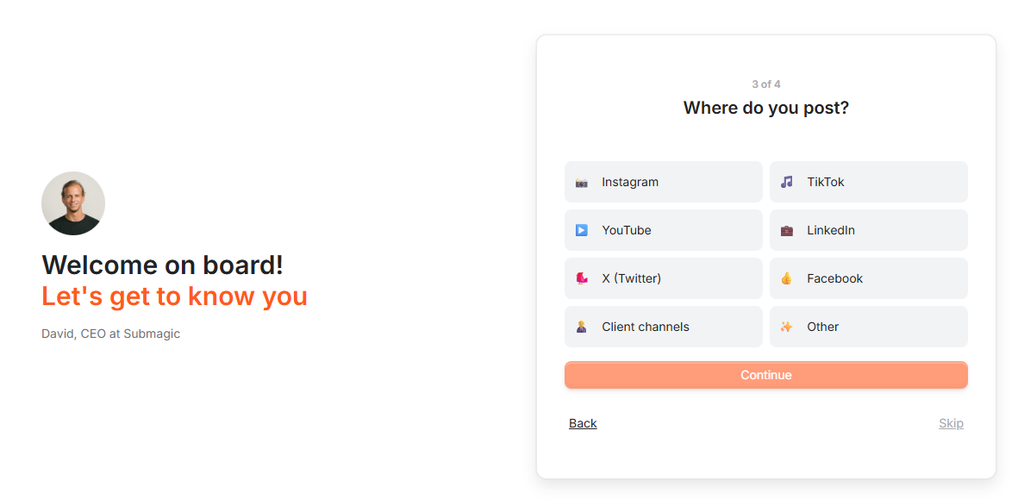
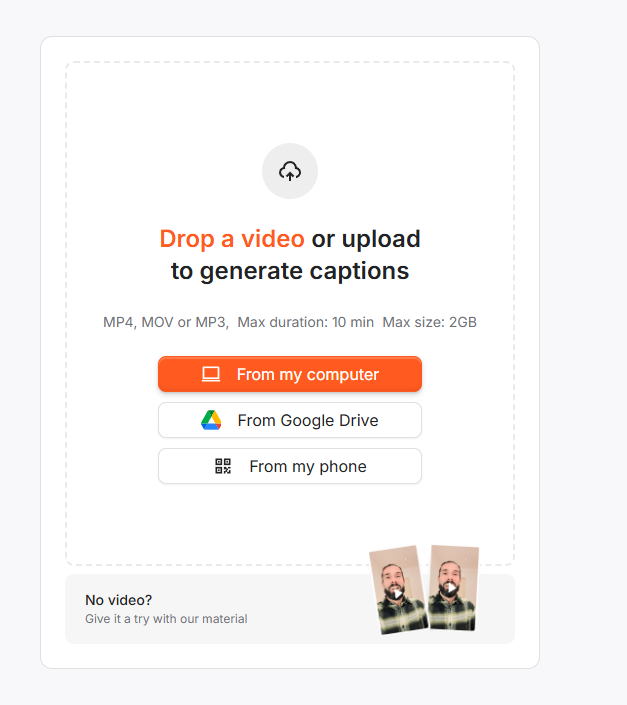
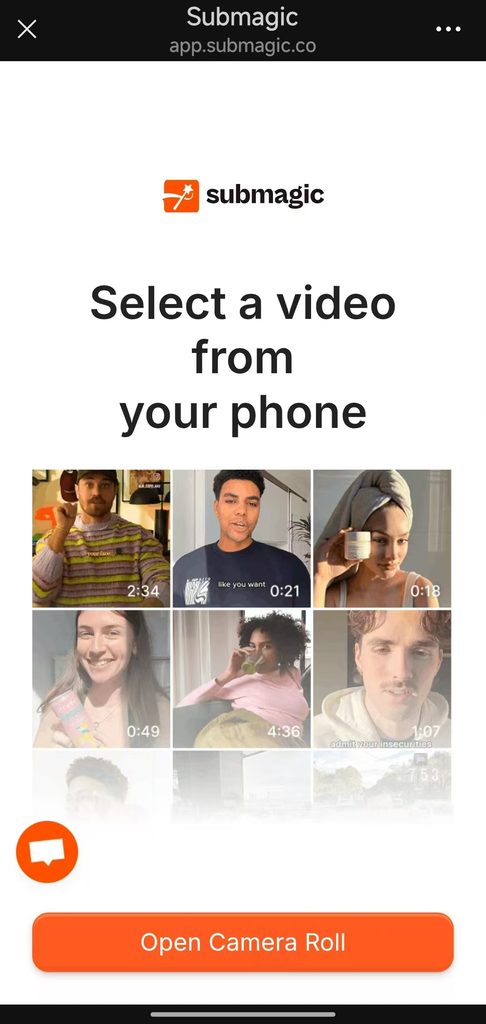
To select a video import method, you can choose from Computer, Google Drive, or Mobile Phone. If you choose Mobile Phone, a QR code will pop up. Simply scan the QR code with your phone and follow the on-screen prompts to import your video file into the workspace. You’ll see your uploaded video in the workspace shortly.
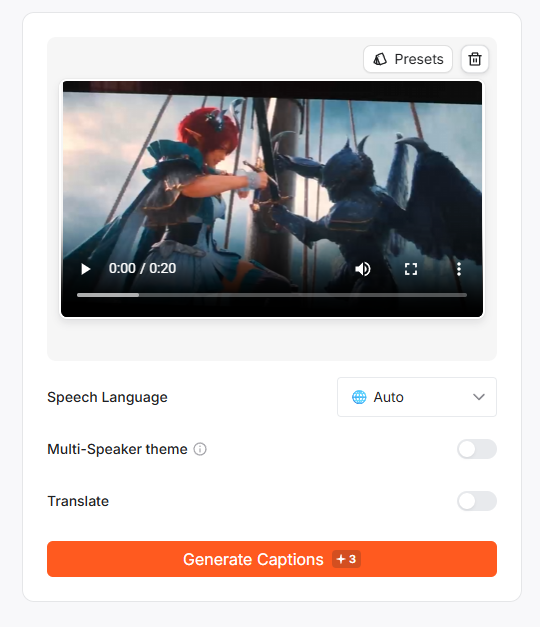
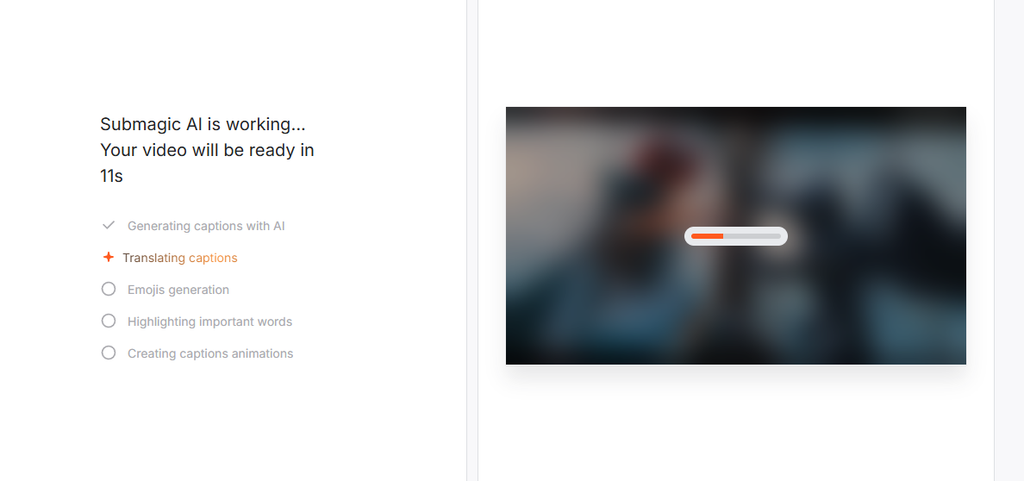
You can select the source language and the language(s) to generate. Once your selections are made, click Generate to proceed to the screen below, where you’ll see the generation process in progress.
2.3 Select Language & Speakers
Set the following during upload:
- Original video language: Chinese / English / Japanese, etc.
- Number of speakers: Single / Multiple (helps distinguish roles)
- For translation: Enable Translate and select the target language (e.g., EN→ES, ZH→EN)
Click Generate Captions. Processing typically takes from a few seconds to a few minutes.
2.4 Review & Edit Captions
Always review AI-generated captions:
- Names / brand names / technical terms
- Numbers, homophones
- Punctuation and sentence breaks
- Mixed Chinese-English speech
How to edit:
- Click Edit Captions
- Modify text directly
- Drag the timeline to adjust in/out points
- Highlight or change color for keywords
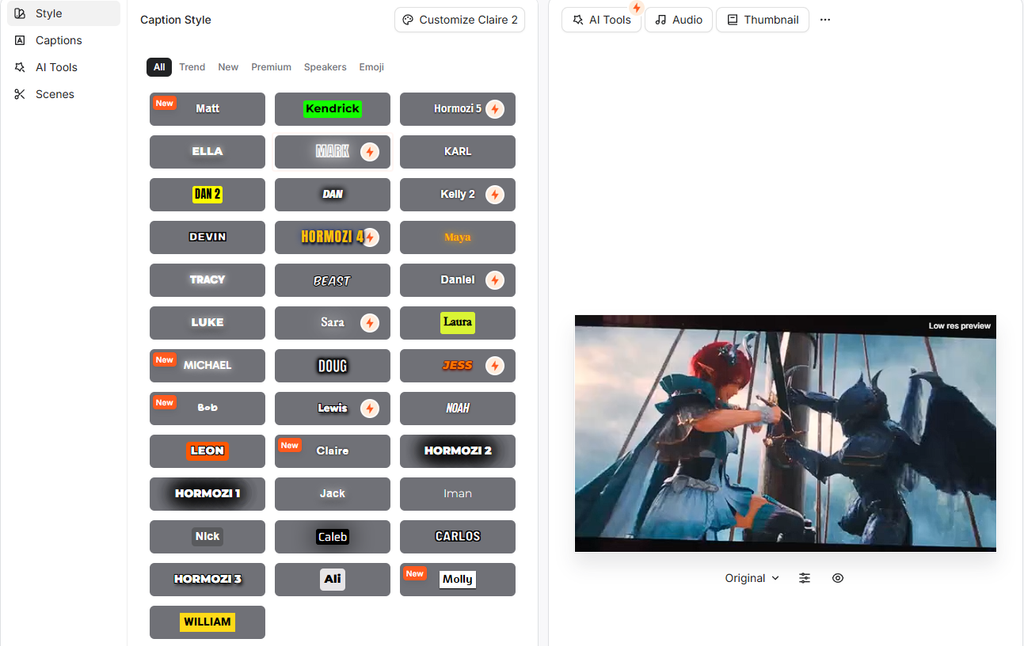
2.5 Choose Caption Style
Submagic offers multiple presets:
- Bold / Viral (for TikTok)
- Clean / Minimal (for Reels)
- Professional (for YouTube Shorts / business)
- LinkedIn: Avoid excessive emojis
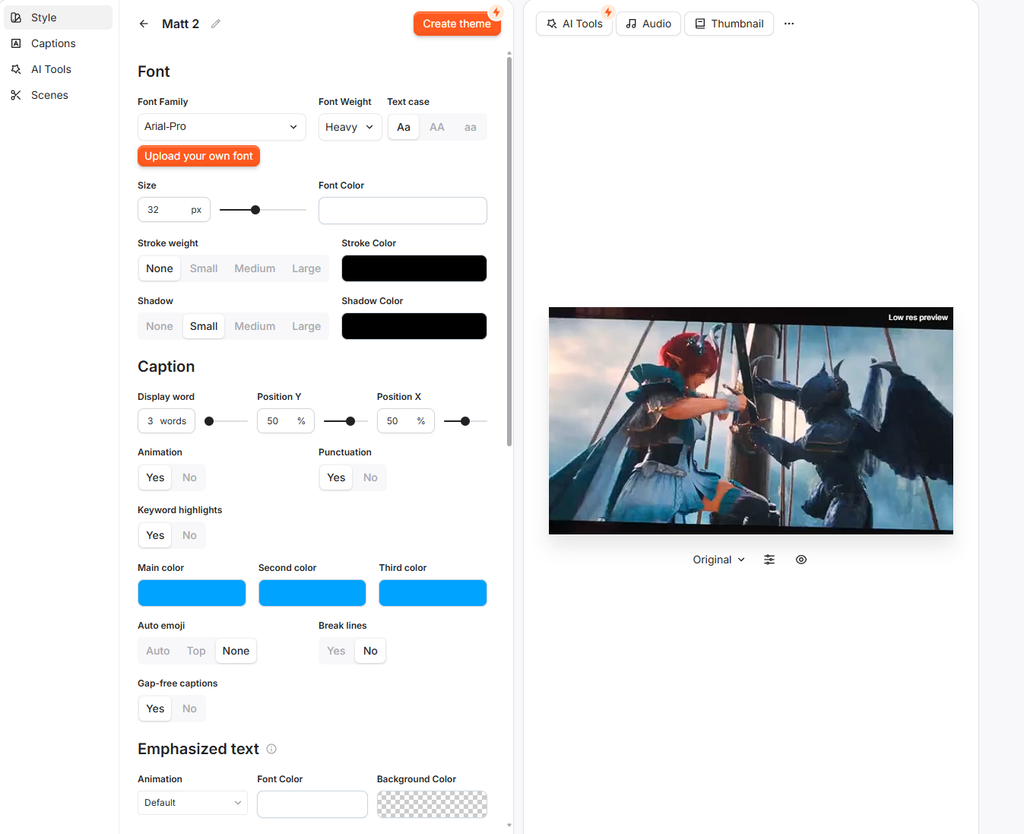
Customizable options:
- Font, size, color
- Outline, shadow, position
- Word-by-word highlight color
- Auto emoji on/off
2.6 Add “Viral Elements”
In the editor, you can also add:
- Hook Title: Eye-catching title at the start
- B-roll: AI-suggested relevant stock footage
- Auto Zoom: Auto zoom-in on key points
- Transitions: Scene transitions
- Sound Effects: SFX library
- Background Music: Built-in library or upload your own
- Clean Audio: Noise reduction / voice enhancement
- Remove Silence: Cut silent or filler parts
- GIF / Image: Emphasize emotional moments
2.7 Color & Audio Adjustments
- Brightness / Saturation / Temperature
- Voice boost
- Lower background music volume
- Color-code different speakers
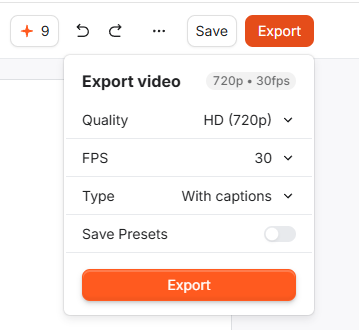
2.8 Export
Click Export:
- Resolution: 1080p / 2K / 4K
- Frame rate: 30 / 60 fps
- Aspect ratio: Vertical / Square / Horizontal
- Free plan: watermark applied; Paid plan: watermark-free, higher quotas
After export, post directly to:
- TikTok
- Instagram Reels
- YouTube Shorts
- (For Douyin / ,check local platform compliance rules)
3. Long Video to Short Clips: Magic Clips
Best for podcasts, livestream replays, courses, and interviews.
Steps:
- Select Get Magic Clips
- Upload a long video / YouTube link / public Google Drive link
- AI identifies “highlight-worthy segments”
- Each clip is scored with a Virality Score
- Select clips → trim unwanted parts → add captions → add hook → Export
Processing long videos may take 10–25 minutes.
4. Caption Translation
Steps:
- Upload video
- Enable Translate
- Choose:
- Translate captions only
- Or translate + voiceover (depending on plan)
- Generate captions in the target language
Best for:
- Chinese videos targeting English-speaking audiences
- English videos targeting Spanish / Portuguese / Japanese markets
- Building multi-language content matrices
Translation is not a literal word-for-word conversion. Manual polishing of slang and cultural references is recommended.
5. Platform-Specific Caption Style Recommendations
| Platform | Recommended Style | Notes |
|---|---|---|
| TikTok | Bold, high contrast, word highlight, more emojis | Place captions lower but avoid covering faces |
| Instagram Reels | Slightly smaller than TikTok, cleaner | Not overly decorative |
| YouTube Shorts | Professional / Minimal | Highlight keywords only |
| Minimal, no emojis | Looks like subtitles, not effects | |
| Douyin | Chinese bold font, keyword color change | Avoid sensitive/non-compliant effects |
6. 6 Habits to Improve Transcription Accuracy
- Use a lavalier or directional microphone
- Record in a low-echo environment
- Speak at a moderate pace; slow down for technical terms
- Trim long silences before uploading
- Build a custom word list (brand names, product names)
- Always double-check numbers, names, and English words after generation
7. Free vs. Paid (Overview)
- Free: Trial use, limited quota/duration, watermark applied
- Paid: Watermark-free, more video minutes, more templates, translation / Magic Clips and other advanced features
- Magic Clips is typically a paid add-on
For current quotas and pricing, please refer to the official website.
8. Common Pitfalls
❌ Background music too loud → transcription errors
❌ Multiple people talking over each other → speaker misidentification
❌ Mixed-language speech without correct language setting → broken punctuation
❌ Directly posting machine-translated content overseas → cultural mismatch, low engagement
❌ Captions covering faces or products → lower watch time
9. Quick-Start Summary
Upload → Select Language → Generate Captions → Fix Errors → Pick Template → Add Hook / B-roll / Zoom → Export Vertical
The overall workflow is clear and the features are comprehensive, covering most use cases. If you’re interested, give it a try — get familiar with the process now so you’ll be able to use it with ease when you actually need it.
Additional content:
Here is the English translation of the Submagic review, pricing tiers, and billing model:
1. Submagic Rating (How many stars?)
Based on aggregated scores from major review platforms (G2 / Trustpilot / ProductHunt / Capterra, etc.):
- G2: Approx. 4.6–4.7 / 5
- Trustpilot: Approx. 4.5–4.6 / 5 (a few hundred to 700+ reviews)
- ProductHunt: Approx. 4.5–4.7 / 5
- Third-party aggregators: Approx. 4.5 / 5
Overall summary: 4.5–4.7 stars, with predominantly positive feedback.
Users praise it for: great-looking caption animations, time-saving workflow, and strong TikTok/Reels/Shorts style presets.
Common complaints: Magic Clips requires an extra add-on fee, limited AI Credits, high cost for long videos or team collaboration, and occasional export glitches.
2. How is Pricing Structured? (Common 2026 Tiers)
Billed per member / per month, with both monthly and annual billing options:
| Plan | Monthly | Annual (Effective/Mo) | Quota |
|---|---|---|---|
| Free Trial | $0 | $0 | 3 videos, watermarked, ~1.5 min max per video |
| Starter | $19 | $12 | 15 videos/mo, max 2 min each, 1080p/30fps, watermark-free |
| Pro | $39 | $23 | 40 videos/mo, max 5 min each, 2K, Brand Kit, AI Hook/Remove Silence/Filler, etc. |
| Business + API | $69 | $41 | 100 videos/mo, max 30 min each, 4K/60fps, API 100 min/mo, Brand Glossary, etc. |
| Custom | Contact Sales | Contact Sales | Enterprise custom, SSO, unlimited templates, custom API limits |
Magic Clips (auto-cut long videos into short clips) is typically an add-on:
- Monthly add-on: approx. $19/member/month
- Annual add-on: approx. $12/member/month
- Usually covers 10 long videos/month
Annual plans are often advertised as “Save up to 41%”, but the pricing page defaults to annual rates—always check whether you’re viewing monthly or yearly pricing.
3. Billing Model Summary
- Subscription-based (SaaS): Billed monthly or annually; not a one-time purchase.
- Per-member pricing: For multi-user teams, total cost = unit price × number of members.
- Dual limits: video count + max duration per video: It’s not just a total minute cap. For example, Starter allows 15 videos, each capped at 2 minutes.
- AI Credits billed separately: Generating AI videos/images consumes AI Credits (Starter: 3, Pro: 6, Business: 15).
- API minutes billed separately: Starter: 10 min/mo, Business: 100 min/mo; overage requires purchasing add-on packs.
- Add-on features cost extra: Magic Clips is the most notable example; some advanced features require additional purchases.
- Free tier is not a permanent free plan: Only 3 watermarked trial videos; paid plans are required for watermark-free exports.
4. One-Sentence Conclusion
Submagic scores around 4.5–4.7 stars and is ideal for creators who need short-form video captions and clips. Choose Starter for light personal use, Pro for regular short-form posting, and Business for teams/automation. However, be aware that Magic Clips, AI Credits, API minutes, and per-member billing can make the actual cost significantly higher than the base monthly fee.
Disclosure: Some links on this page are affiliate links. We may earn a commission if you purchase through them — at no extra cost to you.
Was this review helpful?
Thanks for your feedback!